October 5, 2026
OverlayNewBring your own artwork to an overlay: add a PNG or SVG and make its parts move with your data.
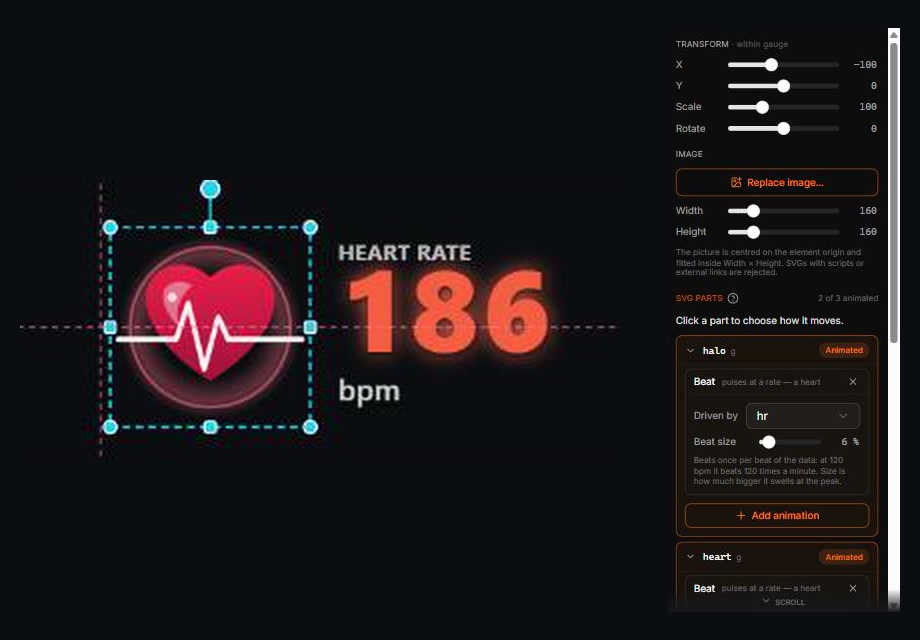
Add an Image (PNG/SVG) element to any gauge. A PNG moves as one piece. An SVG can do more: give layers or groups a name in Figma, Illustrator or Inkscape and each named piece shows up under SVG parts, ready to move on its own — a chainring and a cog, a needle on its dial, a heart and its ripple.
Press + Add animation on a picture, a part, an element or a whole gauge and pick what should happen:
- Follows your data: Spin (wheels and gears turn faster as the number rises), Tilt (a needle swings with the value), Beat (pulses at your heart rate), Grow / Shrink, Fade and Slide. Use speed, power, heart rate, cadence, slope or anything else the file has, and stack several on one piece.
- Reacts to a value: Pop, Shake or Flash each time a value passes a line you set — say, power crossing 80% of your range.
- Entrance and exit: Intro and Outro fade, slide or zoom the gauge in when your activity data starts and out as it ends.
- Loops: Blink and Bounce repeat on their own.
"From … to …" ranges fit your activity by default, so a needle fills its dial on a slow run and a fast ride alike. Pieces keep the order you drew them in, so a trace drawn over a heart stays over it while the heart beats. For something that swings from one end, like a needle, name a small circle <part>-pivot inside it to mark the point it turns about.
Share a gauge. Export one gauge from its toolbar as a .gauge.json file, and bring someone else's in with Import gauge… in the project menu. Anything you import is checked first: images with scripts or links to the outside are left out.